06 · Maintenance
Maintenance & TPM
Complete equipment maintenance management with preventive and autonomous maintenance plans, asset registry, work orders and downtime analysis. The module supports TPM (Total Productive Maintenance) methodology and enables operators, supervisors and technicians to work in the same system with different access levels and views.
View · 01
Maintenance dashboard: 6 KPI cards (Work order backlog, Preventive maintenance compliance, MTBF, MTTR, monthly downtime, spare parts spend), downtime-by-category chart, preventive maintenance compliance trend by week, and a live feed of recent work orders and downtimes
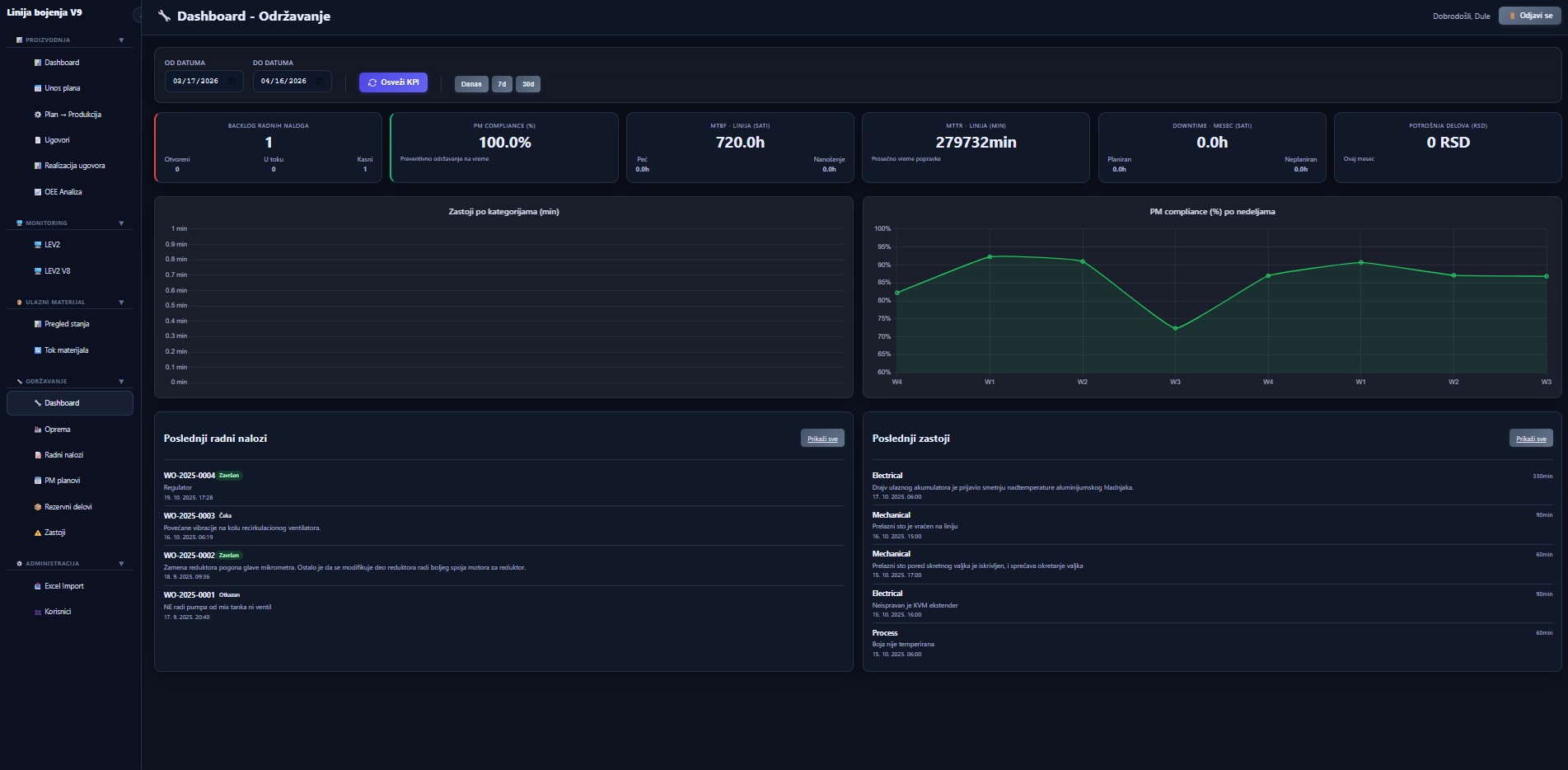
Figure 11 — Maintenance dashboard: 6 KPI cards (Work order backlog, Preventive maintenance compliance, MTBF, MTTR, monthly downtime, spare parts spend), downtime-by-category chart, preventive maintenance compliance trend by week, and a live feed of recent work orders and downtimes
6 maintenance KPIs
Work order backlog (open / in progress / late), preventive maintenance compliance (%), MTBF and MTTR per line, monthly downtime (planned / unplanned), spare parts spend in RSD.
Downtime by category
Bar chart that breaks down downtime by type (electrical, mechanical, process) — direct input for technical discussions with maintenance.
Compliance trend by week
Line chart of preventive maintenance compliance by week — fluctuations and weeks where maintenance was not executed are immediately visible.
Recent orders and downtimes feed
Two side-by-side sections — work orders with status (Done / Waiting / Cancelled) and a chronological downtime log with exact durations.
View · 02
Equipment / Maintenance: asset registry with complete identifiers (asset code, zone, location, manufacturer, model), criticality label (high / medium / low) and status (active), with Edit / History / Delete actions
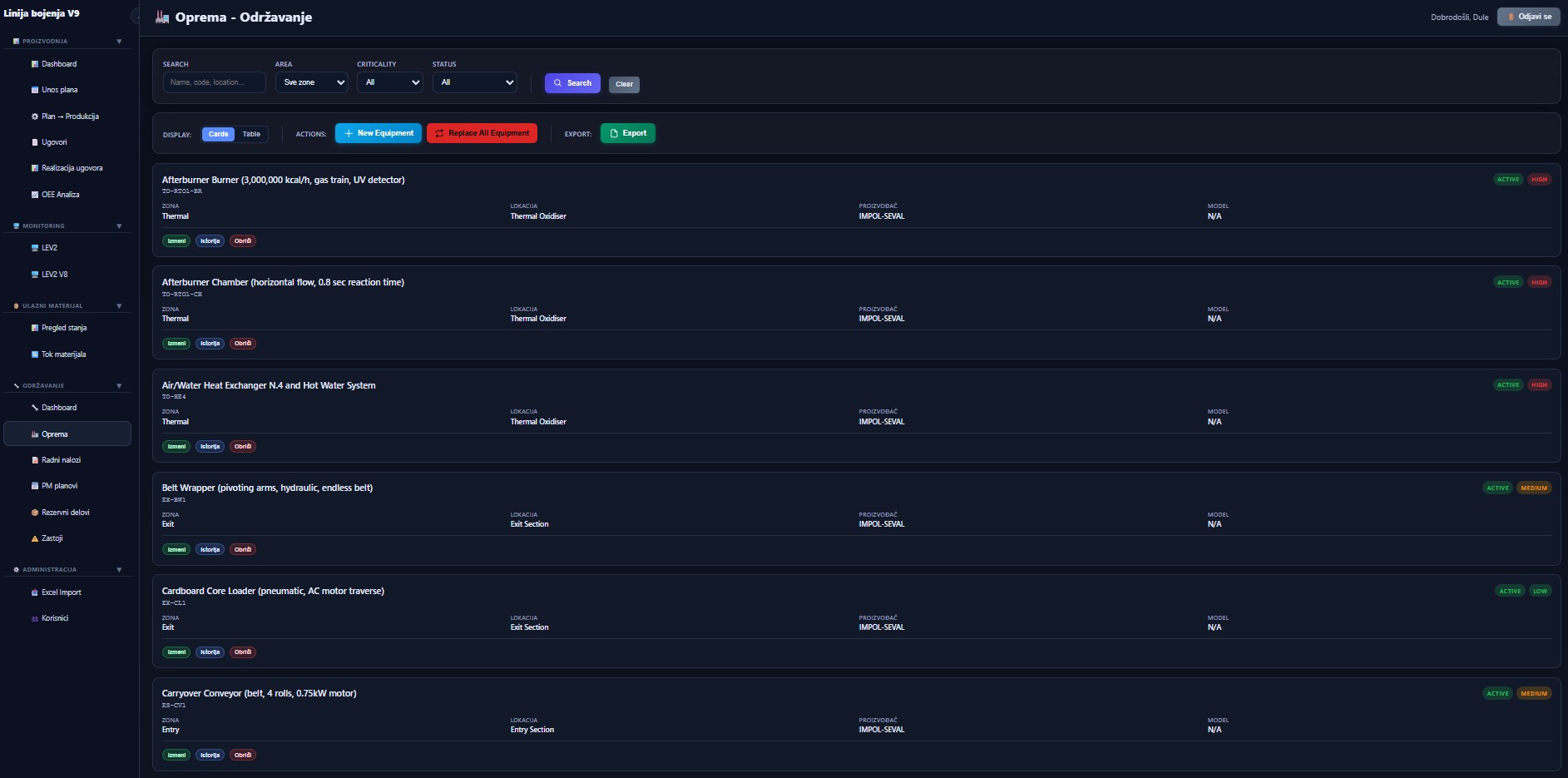
Figure 12 — Equipment / Maintenance: asset registry with complete identifiers (asset code, zone, location, manufacturer, model), criticality label (high / medium / low) and status (active), with Edit / History / Delete actions
Complete asset identification
Unique code, zone, exact plant location, manufacturer and model — all essential information on one card.
Criticality labeling
Every machine tagged with high / medium / low criticality — filters let you focus on the equipment that matters most to the process.
Cards or table view
Display toggle — cards for browsing, table for quick comparison and export.
Batch equipment replacement
Batch equipment replacement (e.g. replacing a full set after overhaul) — no manual card-by-card editing.
View · 03
Work orders: Kanban board with 4 columns (Open / In progress / Waiting / Done), each order carries priority (medium / high), a unique identifier, problem description, equipment link, reporting timestamp and assigned technician
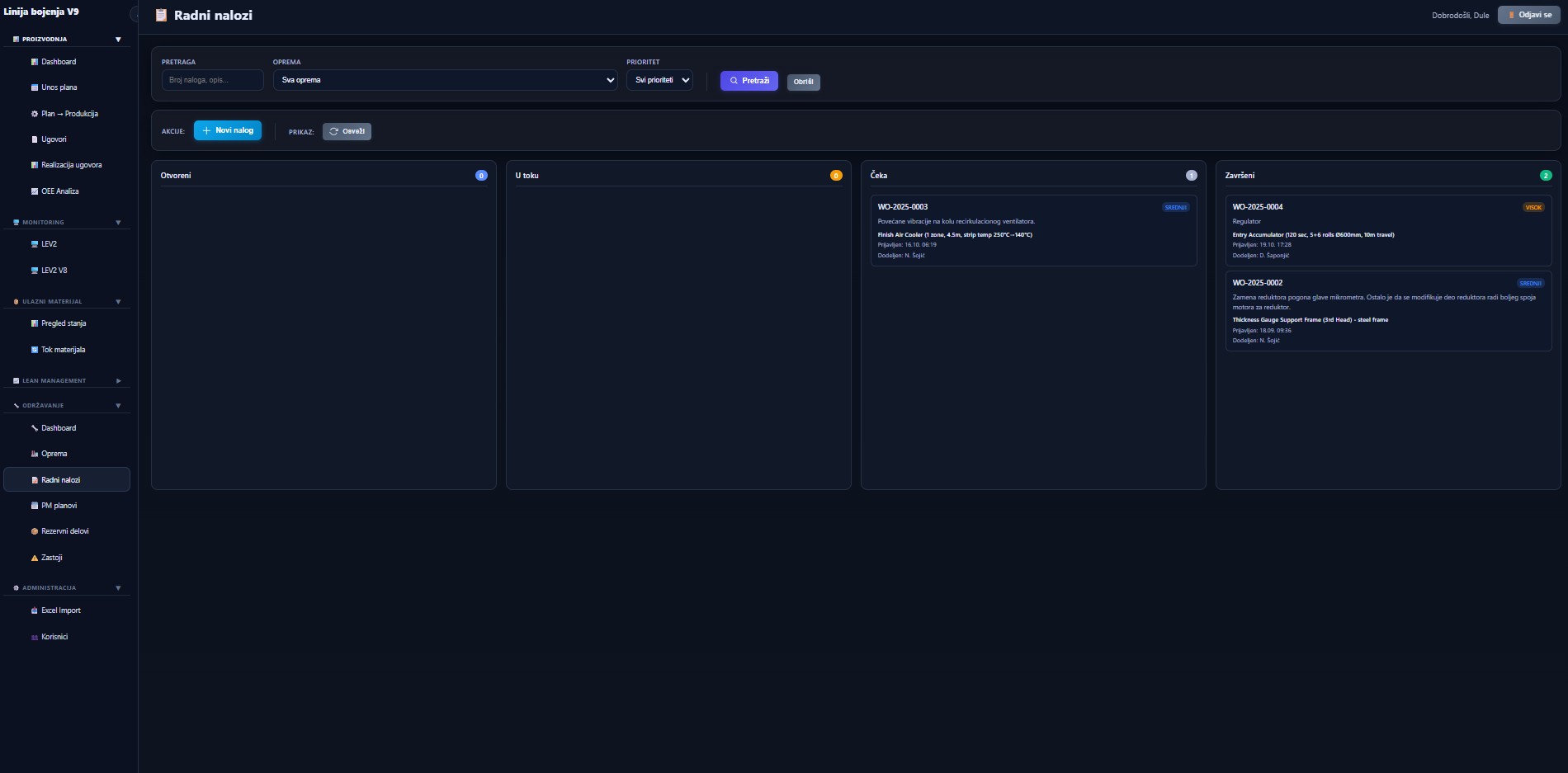
Figure 13 — Work orders: Kanban board with 4 columns (Open / In progress / Waiting / Done), each order carries priority (medium / high), a unique identifier, problem description, equipment link, reporting timestamp and assigned technician
Kanban with 4 columns
Open, In progress, Waiting (blocked or awaiting parts), Done — with order counter per column.
Priority on the card itself
Low / medium / high priority shown on every order — a visual cue of what to tackle first.
Full context without opening
Order identifier, problem description, affected equipment, reporting timestamp and assigned technician — all essentials visible directly on the card.
Filter by equipment and priority
Quickly narrow to the orders a technician wants to see — by line, machine or priority.
View · 04
Preventive maintenance plans: plan management with 4 KPI cards (Total, Active, Due now, Overdue), plan cards with interval, last execution and tolerance, with Edit and History actions
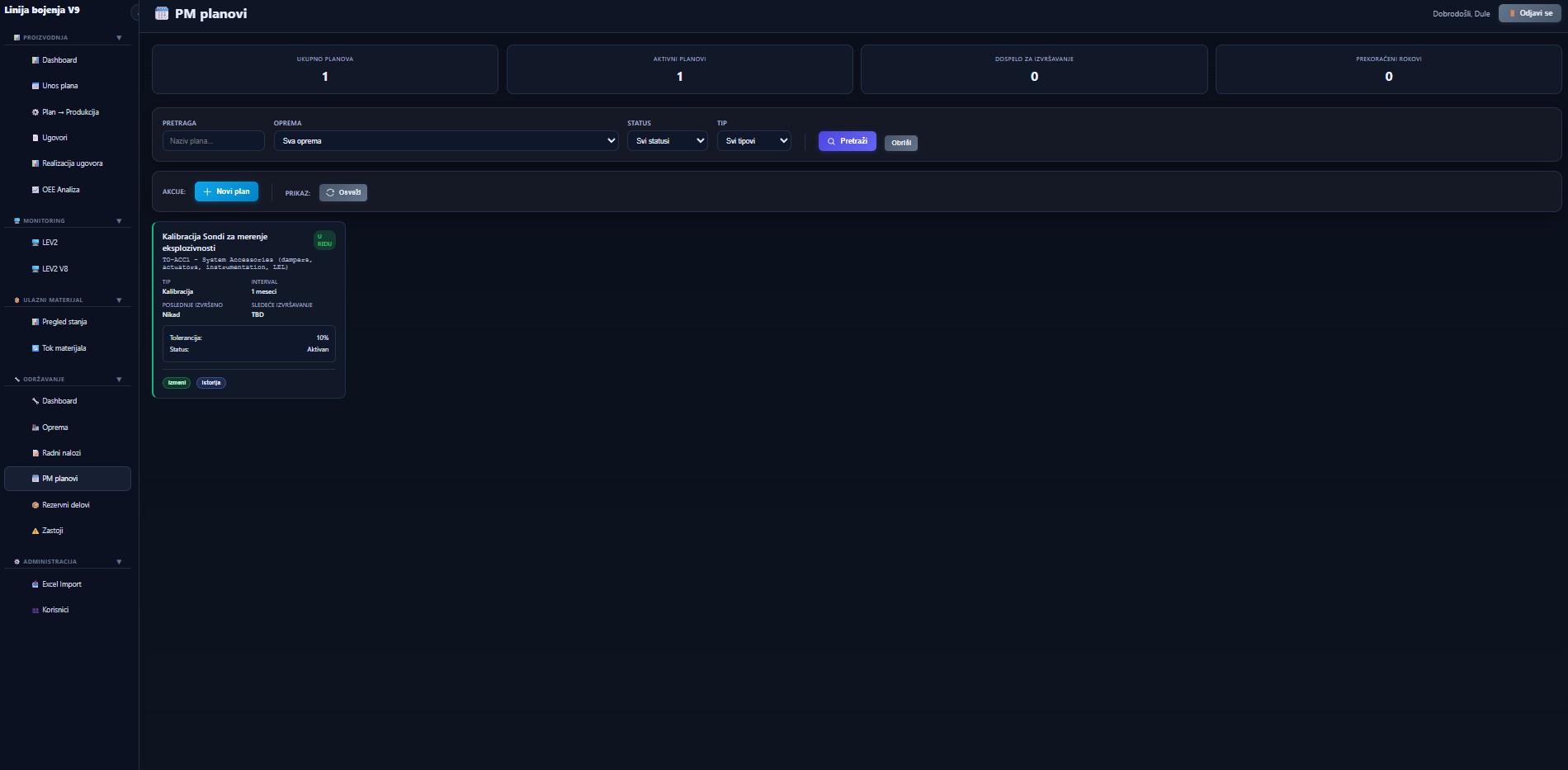
Figure 14 — Preventive maintenance plans: plan management with 4 KPI cards (Total, Active, Due now, Overdue), plan cards with interval, last execution and tolerance, with Edit and History actions
4 KPI cards
Total plans / Active plans / Due for execution / Overdue — with a count for each category.
Plan cards with full details
Type (calibration / cleaning / replacement), interval (month, operating hours, cycles), last executed, next due, and tolerance.
Equipment link
Every plan is directly linked to an asset from the registry — the intervention history for that asset is one click away.
Filter by status and type
Status (OK / Late / Due) and plan type overlay — the maintenance planner sees only what is relevant for the week.
View · 05
Downtimes: registry of all downtimes with 4 summary cards (Total, In progress, Total minutes, Average duration), filters by date / equipment / category / status, "Report downtime" and Export actions, and a detailed table with time, equipment, category (electrical / mechanical / process), symptom, cause, duration and status
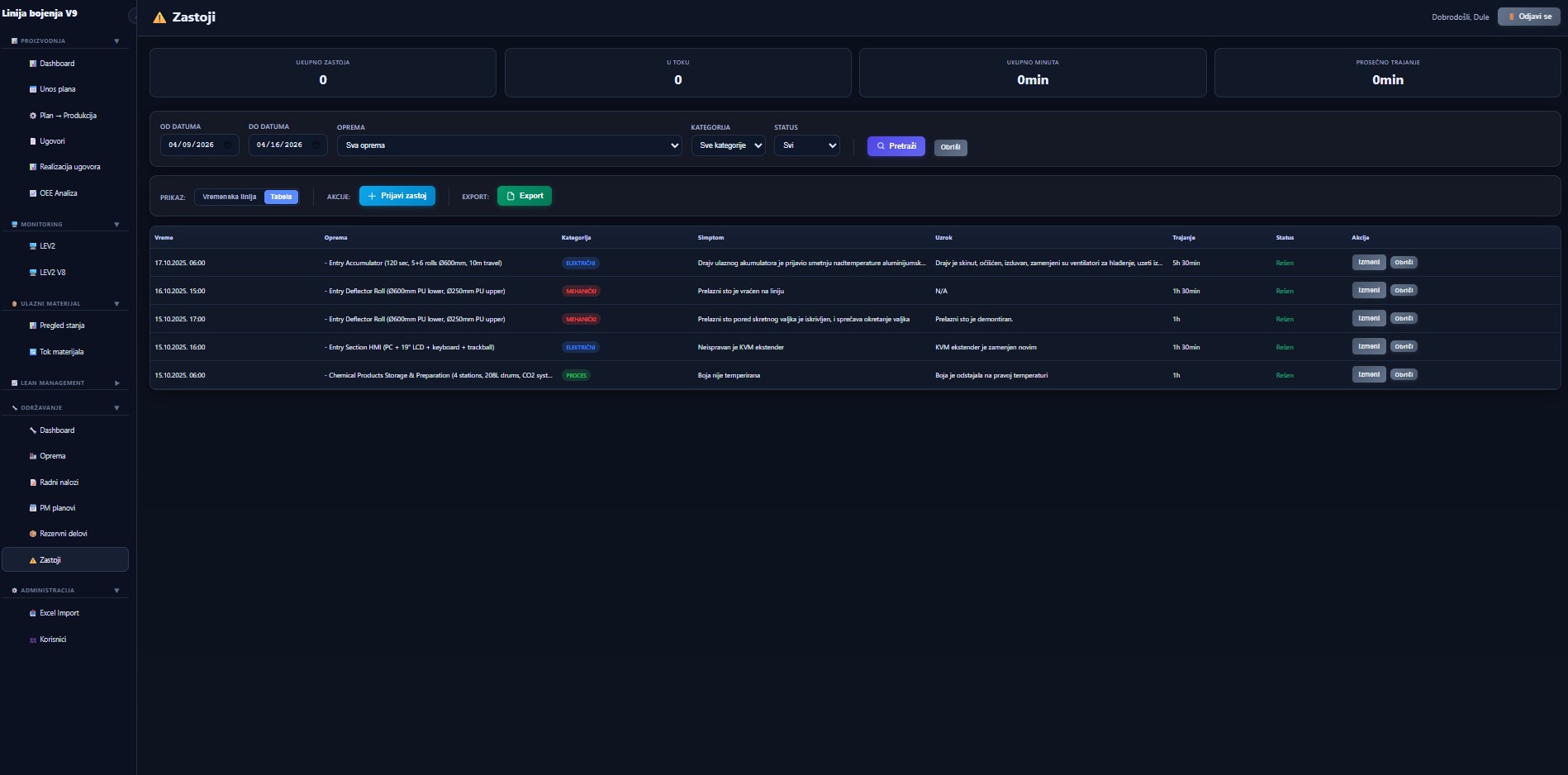
Figure 15 — Downtimes: registry of all downtimes with 4 summary cards (Total, In progress, Total minutes, Average duration), filters by date / equipment / category / status, "Report downtime" and Export actions, and a detailed table with time, equipment, category (electrical / mechanical / process), symptom, cause, duration and status
Colour-coded classification
Electrical (blue), mechanical (red), process (green) — visually separated in the table, one-click category filter.
Symptom and cause in the record
Every downtime carries a symptom (example: "input accumulator drive reported overtemperature") and a cause (example: "drive was cleaned, fans replaced") — the analysis trail is part of the record.
Timeline or table
Switch between chronological timeline (for operational briefings) and tabular view (for analysis).
One-click downtime reporting
An operator at the terminal can report a downtime directly, without calling a technician — the Kanban in the Work Orders module updates immediately.
Ready to digitalize your production?
Schedule a 30-minute demo call. We will show you how CTRL works with your PLCs, your data, and your processes. The solution is fully customized and tailored — terms by agreement.